How to Automatically Log Off Idle Users in Windows® for Enhanced Security
March 18, 2025

March 18, 2025
Idle user sessions can be a hidden drain on your system’s performance and become a potential security risk.
When a session remains active after a user disconnects, it leaves the system vulnerable to unauthorized access. This is especially critical in shared or remote environments, where unattended sessions can expose sensitive data.
The solution? Automatically logging off idle users after a set period of inactivity. This simple configuration helps you free up system resources while safeguarding your computer from unauthorized access.
A word of caution: Unsaved work will be lost if users are logged out automatically. Encourage users to save their progress frequently to avoid data loss.
In this guide, you’ll learn how to set up automatic logoff in Windows to protect your system and enhance its performance.
Why You Should Enable Automatic Logout After Inactivity
Configuring Auto Log Off for Idle Users in Windows
Common Questions About Automatic Logout in Windows
Streamline User Management with V2 Cloud
Enabling automatic logout after inactivity offers several benefits, especially in shared or remote desktop environments. Here’s why this feature is essential:
Idle sessions can be a gateway for unauthorized access, especially if users forget to log out. By configuring automatic logoff, you can reduce the risk of sensitive data being accessed or misused by others.
This is particularly important for businesses handling confidential information or operating in regulated industries.
When idle sessions remain active, they continue consuming system resources like memory (RAM) and processing power. Over time, this can slow down the system, especially in environments with multiple users.
Automatically logging off idle users clears these sessions, freeing up resources for active tasks and improving overall performance.
For IT administrators, managing multiple user sessions can be challenging. Automatic logout ensures that inactive sessions don’t pile up, reducing the need for manual intervention.
This feature makes resource allocation and session monitoring more efficient, especially in virtualized or cloud-based setups.
Follow these detailed instructions to set up automatic logoff for idle users. This process uses the Local Group Policy Editor, a built-in Windows tool for managing advanced system configurations.
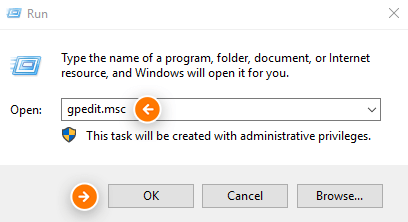
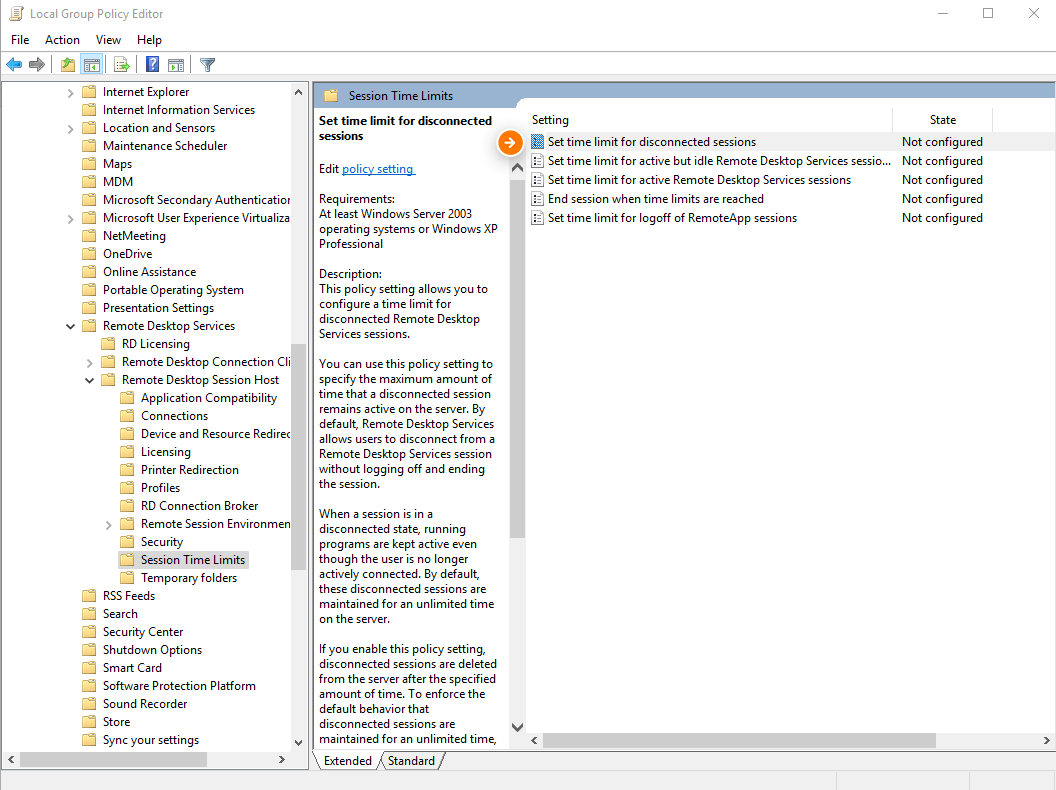
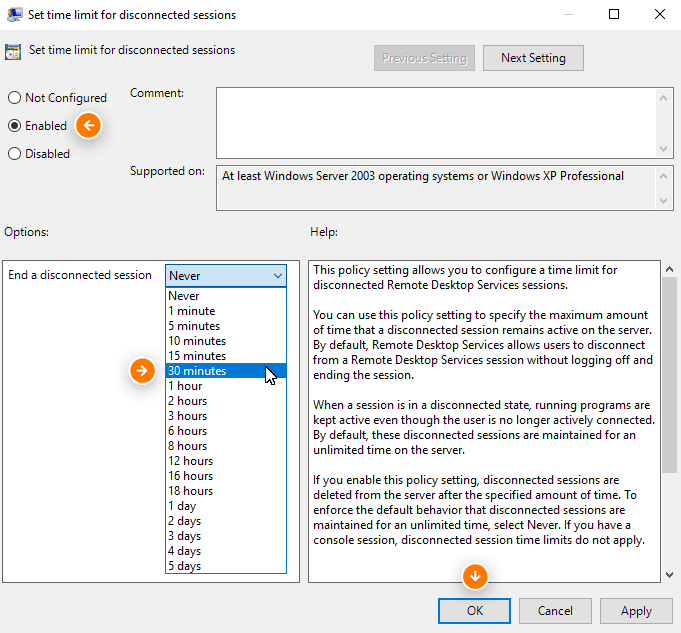
If a user is automatically logged off due to inactivity, any unsaved work will be lost. To prevent data loss, it’s important to remind users to save their work regularly, especially before leaving their sessions idle.
The Local Group Policy Editor applies settings globally, meaning all users on the system will follow the same time limit for inactivity. For more granular control, you might need to use scripting or third-party tools to customize settings for specific users.
Yes, the feature can be disabled at any time. Simply follow the same steps to navigate to Set time limit for disconnected sessions in the Local Group Policy Editor and choose Disabled or Not Configured.
The Local Group Policy Editor is available in Professional, Enterprise, and Education editions of Windows. It is not included in Home editions. For those using Home editions, similar changes can be made by modifying the Windows Registry, though this requires advanced technical knowledge.
This setting is specifically designed for remote desktop sessions. However, similar policies can be configured for local users through other settings in the Group Policy Editor.
Implementing automatic logout after inactivity is a great step toward optimizing system performance and security, but managing multiple user sessions can still be a challenge—especially in cloud-based environments.
That’s where V2 Cloud makes a difference. Here’s how we will help you:
With V2 Cloud, you can simplify user management, enhance security, and improve system performance—all without the hassle of manual configuration.
Ready to streamline your IT operations? Talk to a Cloud Expert Now and take your user management to the next level.

Your V2 CloudCare team — real people, on the line.


